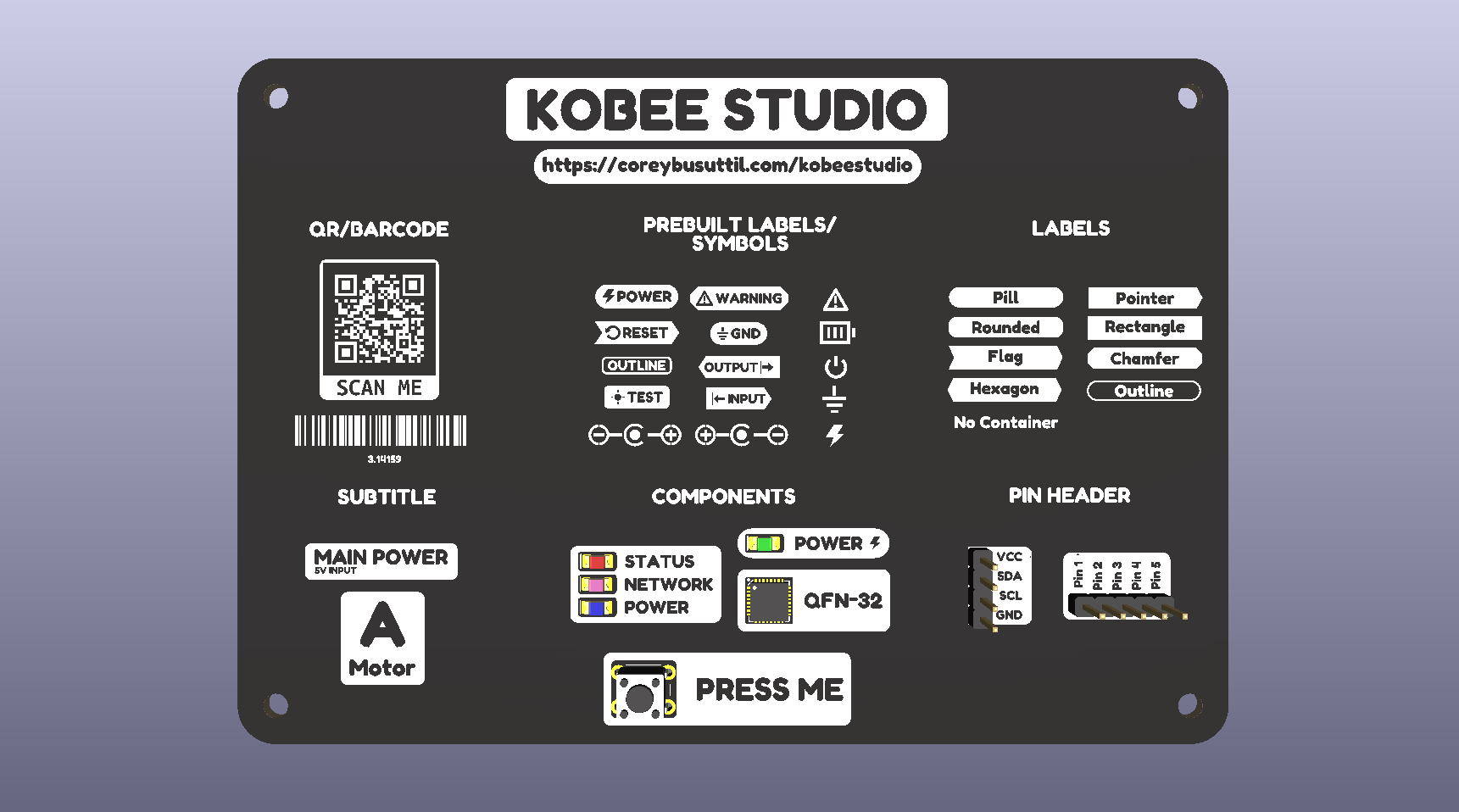
Kobee Studio is an open-source KiCad plugin for making board labels, symbols, callouts and machine-readable artwork without leaving PCB Editor. The current stable release is 1.4.0 for KiCad 10 on macOS and Windows; Linux support is documented but still being validated.
A Kobee Studio showcase board with editable labels, symbols, callouts and machine-readable artwork.
Start here
- Install Kobee Studio for KiCad 10.
- Learn the main tools and where they fit on a board.
- Understand the workflow before placing your first item.
- Read the release notes or see what is next.
- Get help, tutorials or contribute from the Kobee Studio docs.
Documentation map
The guide is organised so it can grow without turning into one long page:
- Getting started — installation, compatibility and the first-board workflow.
- Using Kobee Studio — labels, symbols, component callouts, headers, QR codes and barcodes.
- Reference — troubleshooting, release notes, manufacturing guidance and contribution notes.
Each page is a normal Markdown file in content/tutorials/docs/kobee-studio/. Its documentation frontmatter controls the parent guide, section and order, so you can add or rearrange pages without changing the Learn layout code.
What it can make
- Text labels with filled or outline containers.
- Standalone symbols and quick labels for common board markings.
- 2.54 mm header overlays and component-aware callouts.
- QR codes and Code 128 barcodes.
- Artwork on front or bottom silk, copper and solder-mask layers.
Everything Kobee Studio creates is ordinary KiCad footprint geometry. The original electrical footprint remains separate.
Documentation status
This is a living guide. Treat the repository README and release notes as the source for current capabilities, then add a focused page here when a workflow is stable enough for someone else to follow. Keep version-specific behaviour labelled clearly, include screenshots with useful alt text, and link to the GitHub issue or release when a detail is still being tested.